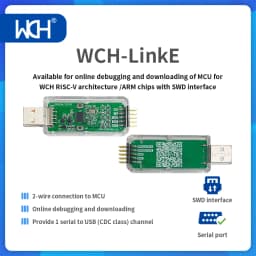
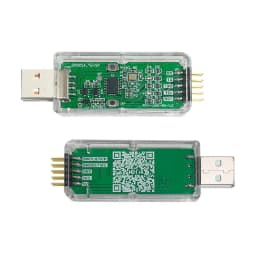
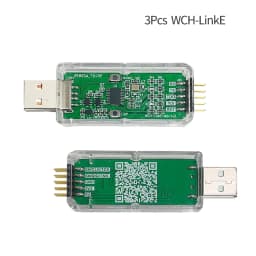
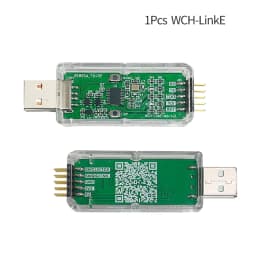
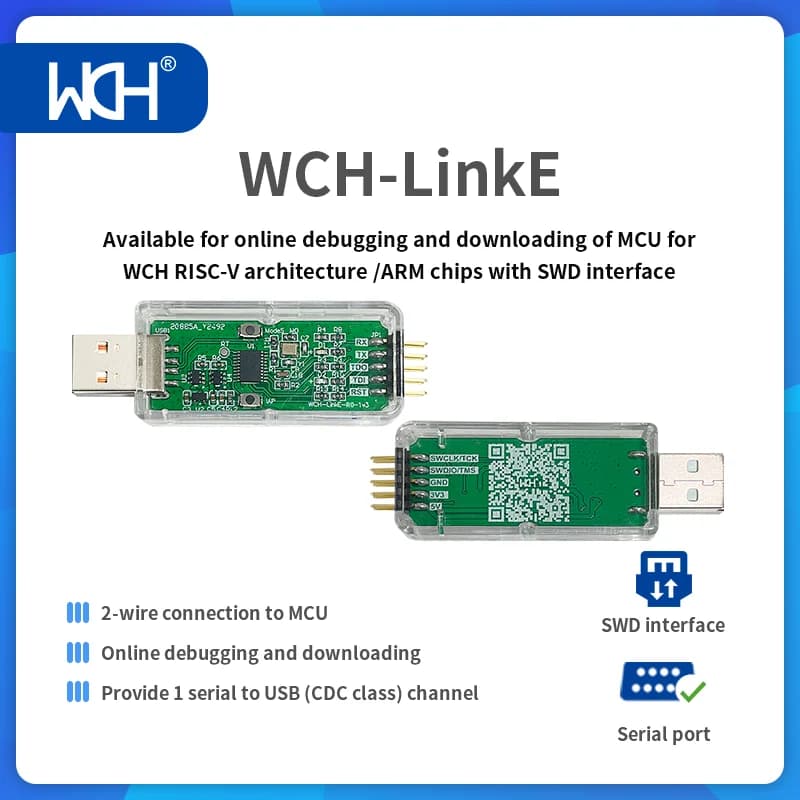
WCH-LinkE Online Download Debugger Support WCH RISC-V Architecture MCU/SWD Interface ARM Chip 1 Serial Port to USB Channel
Quantity:
1
Availability:
Not AvailableCard Payments
Crypto Payments
Easy return
Reliable Shipping
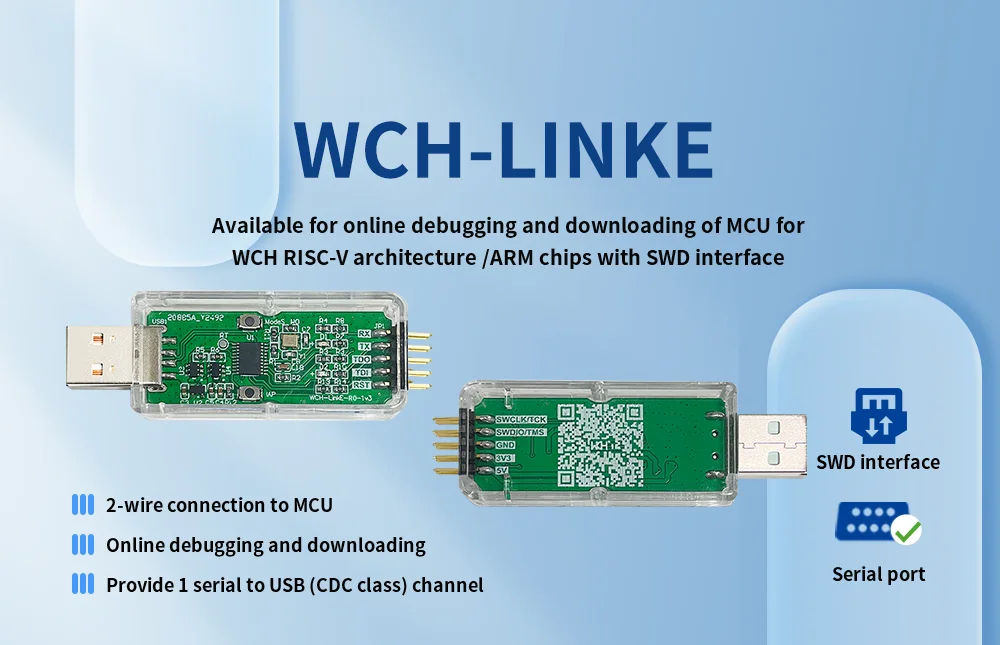
1. Functional Features
-Support online downloading and debugging of WCH RISC‐V architecture MCU and ARM chips with SWD interface, with two‐wire interface, fast speed and stable operation.
-Support 3.3/5V dual power output.
-Red and blue LED indicators for easy viewing of working status.
-Directly marked on the interface definition board for ease of use.
-Support for automatic firmware detection and upgrade.
-Support for one‐button switching of RISC‐V/ARM mode by the host computer.
-Use the transparent case to protect the motherboard, easy to carry.
2. Function introduction
WCH‐LinkE module, can be used for online downloading and debugging of WCH RISC‐V architecture MCU and ARM chips with SWD interface. It is connected to the host computer via USB2.0 full-speed interface for plug‐and‐play driver‐free installation and connected to the target chip by SWD interface for debugging and programming. Also with 1 way serial port for easy debugging output.
3. Hardware description
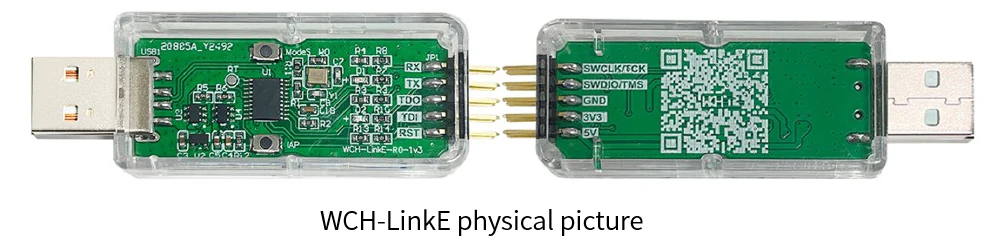
Pin Definition
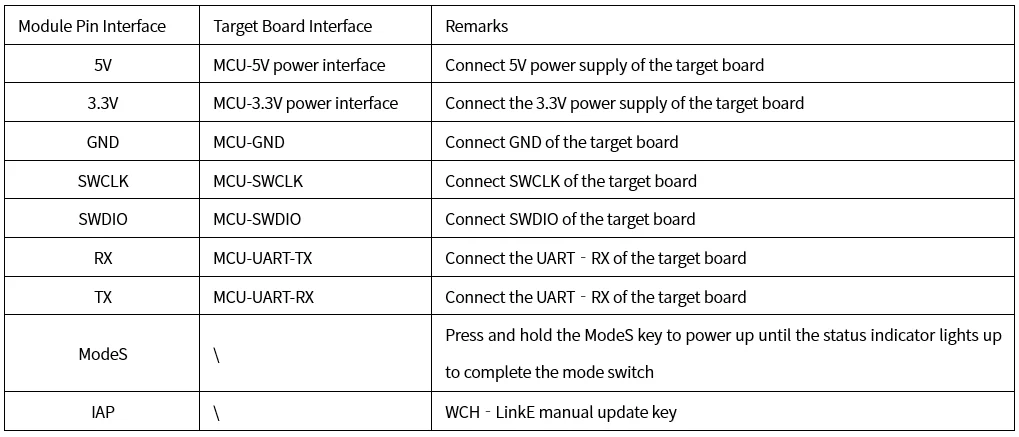
If WCH-LinkE firmware needs to be updated
1. Online update, MounRiver Studio/WCH-LinkUtility will have a pop-up reminder when you click download, click Yes to start the update.
2. Manual online update, press and hold the IAP key, power on until the blue LED is lit, click download, MounRiver Studio/WCH-LinkUtility will have a pop-up reminder, click Yes to start the update.
4. Instructions for use
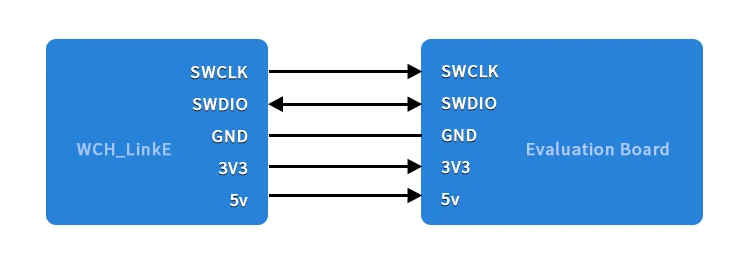
SWD connection method
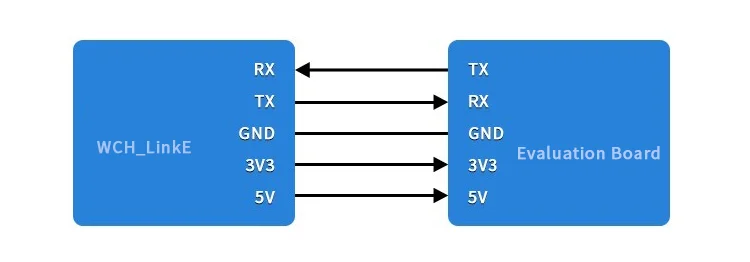
USB to TTL serial port connection
Mode switching:

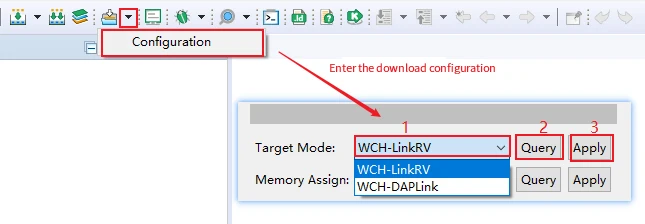
Way 1: Use MounRiver Studio software to switch WCH-LinkE mode
-Power up the WCH-LinkE, open MounRiver Studio, and enter the download configuration
-Select the target mode and apply
Notes:
-1 is to select the target mode
-2 is to query the current mode
-3 is to set the target mode
Way 2: Use WCH-LinkUtility tool to switch WCH-LinkE mode
-Power up WCH-LinkE and open WCH-LinkUtility tool
-Select the target mode and apply

Way 3: Use ModeS key to switch WCH-LinkE mode (WCH-LinkE-R0-1v2 only)
Press and hold the ModeS key to power up until the status indicator lights up to complete the mode switch.
Notes:
-When downloading and debugging, the blue LED flashes
-WCH-LinkE maintains the switched mode when used subsequently
-WCH-LinkE high-speed version only for CH32F20x/CH32V20x/CH32V30x to speed up
5. Specifications
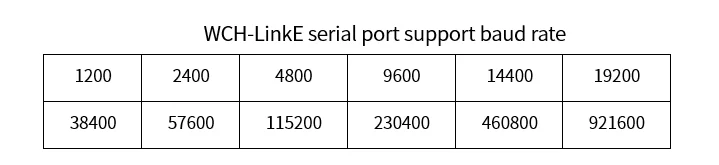
-Serial port default parameters
-Data bit: 8
-Stop bit: 1
-Checksum bit: None
-Flow control: None
6. Technical resources
(1) MounRiver Studio access website: http://mounriver.com/
(2) WCH-LinkUtility access website:https://www.wch.cn/downloads/WCH-LinkUtility_ZIP.html
(3) WCHISPTool access website: https://www.wch.cn/downloads/WCHISPTool_Setup_exe.html
(4) WCH-Link information website: https://www.wch.cn/products/WCH-Link.html

Customer Reviews
No reviews yet
WCH-LinkE Online Download Debugger Support WCH RISC-V Architecture MCU/SWD Interface ARM Chip 1 Serial Port to USB Channel
Quantity:
1
Availability:
Not Available