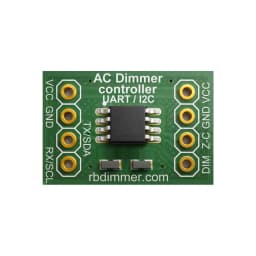
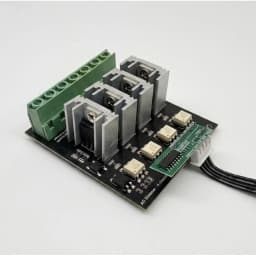
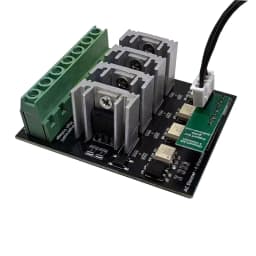
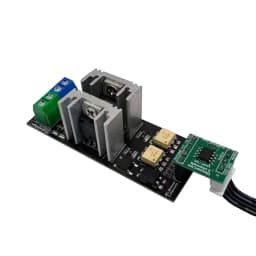
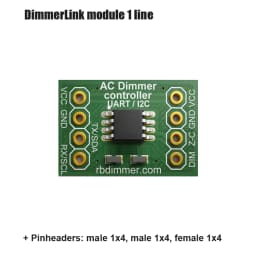
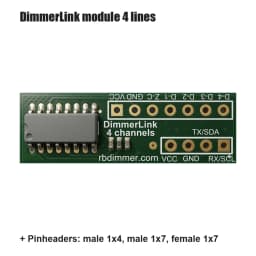
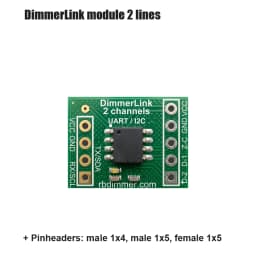
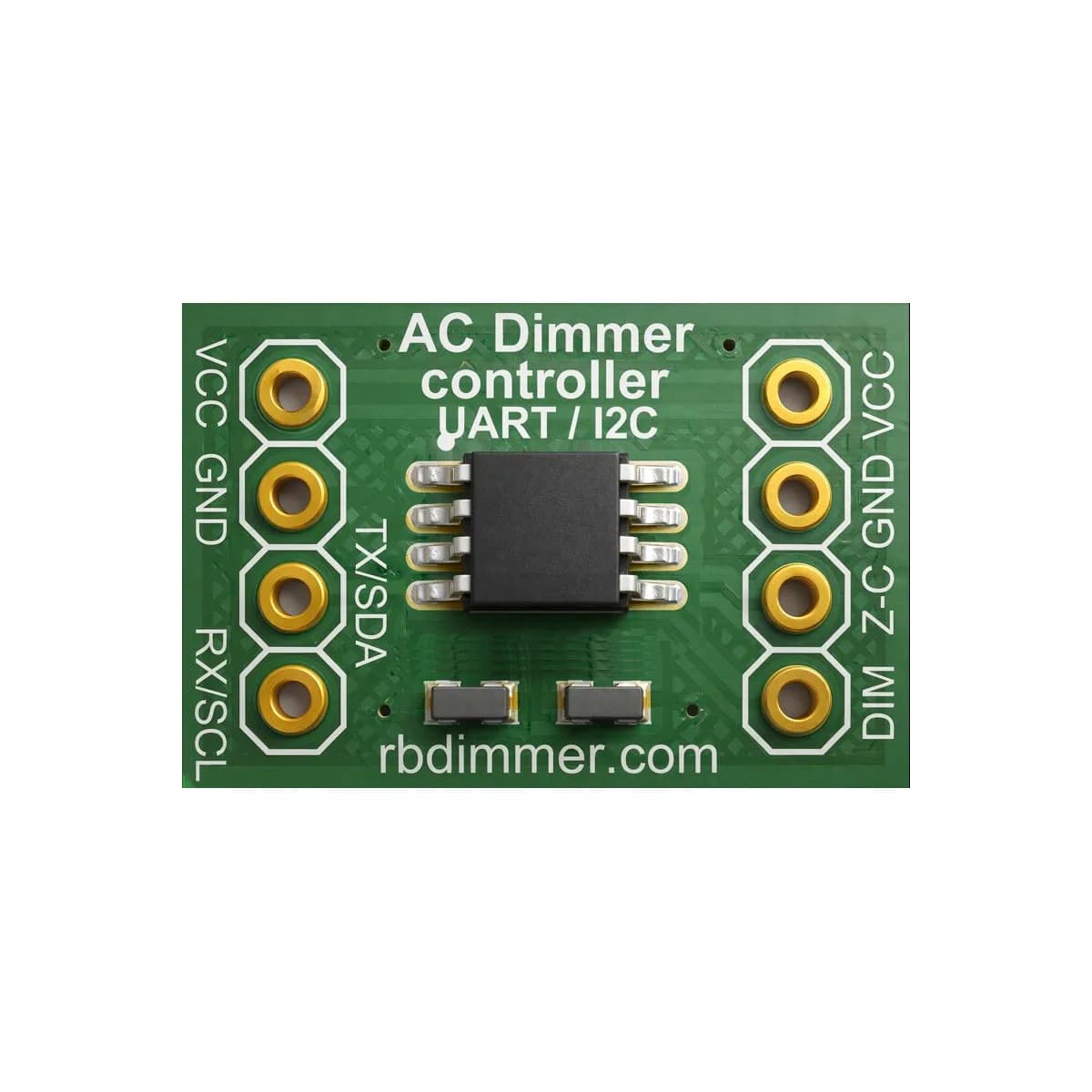
DimmerLink - AC Dimmer controller, UART/I2C interface, FLICKER-FREE, NO LIBRARIES REQUIRED
Quantity:
1
Availability:
Not AvailableCard Payments
Crypto Payments
Easy return
Reliable Shipping
DimmerLink — User Documentation
RBDIMMER.COM
Techincal support, user guide, community support
AC dimmer controller for lamp brightness control via TRIAC. Connects to your project (Arduino, ESP32, Raspberry Pi, etc.) and allows you to control AC dimmers with simple commands.
Working with DimmerLink is easy.
Key Features
✅ FLICKER-FREE — Dedicated Cortex-M+ handles all critical timings. No software delays, interrupt conflicts, or flickering.
✅ NO LIBRARIES REQUIRED — Send simple 3-4 byte commands via UART or I2C. Works with any programming language. Literally 5 lines of code.
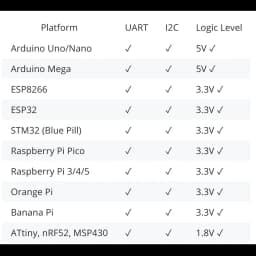
✅ UNIVERSAL COMPATIBILITY — Arduino, ESP32, ESP8266, Raspberry Pi, STM32, any MCU with UART/I2C. Supports 1.8V, 3.3V, 5V logic levels.
✅ BRIGHTNESS CONTROL — 0-100% range
✅ DIMMING CURVES — Linear, RMS (for incandescent), Logarithmic. Auto-detection of 50/60Hz mains frequency.
✅ MAINS DETECTION — Automatic mains frequency detection (50/60 Hz)
✅ DUAL INTERFACE — UART (115200 8N1) or I2C. Switch by command at any time.
✅ ULTRA-COMPACT — Only 18×12mm. Standard 0.1" pins. Fits in any enclosure.
✅ PLUG & PLAY — Connect, power up, send command. Working dimmer in 5 minutes.
The Problem We Solve
Every maker knows this pain: you add an AC dimmer library to your project, and suddenly your lamps start flickering, timings go haywire, and you spend hours debugging interrupt conflicts. DimmerLink completely eliminates this problem by offloading all time-critical operations to a dedicated Cortex-M+ microcontroller.
How It Works
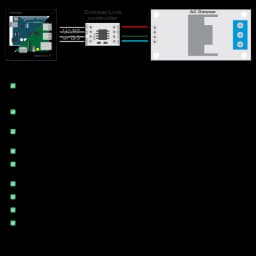
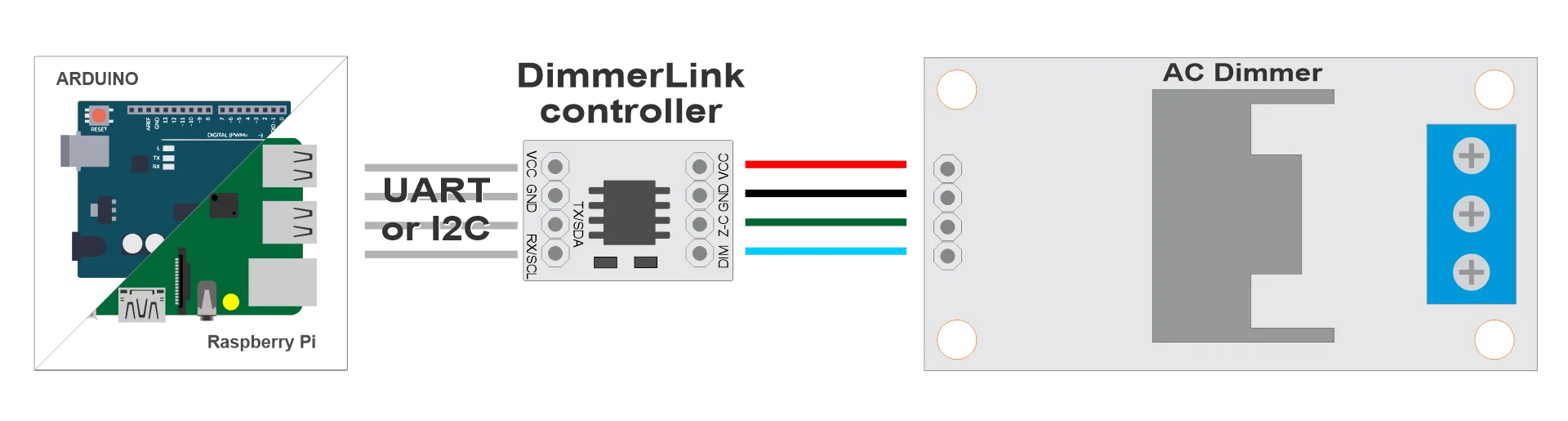
Connect DimmerLink between your controller (Arduino, ESP32, Raspberry Pi, or any MCU) and an AC dimmer module. Send a 3-byte command like
SET 50%
via UART or write a value to an I2C register. The controller handles zero-cross detection, calculates phase angle, and controls the TRIAC with microsecond precision. No libraries. No interrupts. No conflicts with your code.
Or connect to remote transmission modules like LoRa, GSM/GPRS, Bluetooth or WiFi bridges, or simply to your PC via USB-UART modules like CH340, CP2102/CP2104. Industrial RS-232 modules. No code required, just commands via terminal.
Which Interface to Choose?
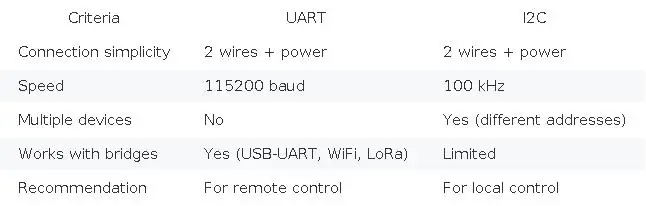
💡 Tip: We recommend I2C for beginners — simpler code, clearer structure.
Compatibility
DimmerLink supports 1.8V, 3.3V and 5V logic levels — direct connection without level converters!
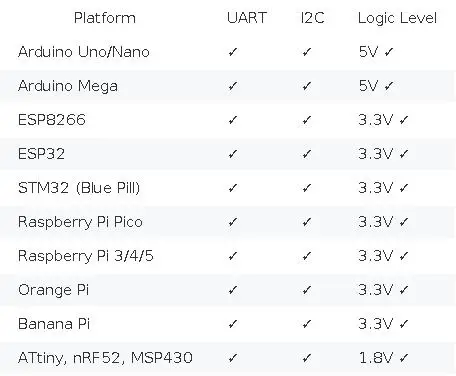
This is just a basic list — DimmerLink works with any microcontroller that has UART or I2C!
Quick Example
Arduino + I2C — set brightness to 50%:
===========
#include
void setup() {
Wire.begin();
// Set brightness to 50%
Wire.beginTransmission(0x50);
Wire.write(0x10); // Brightness register
Wire.write(50); // 50%
Wire.endTransmission();
}
void loop() {}
===========
Python + UART:
===========
import serial
ser = serial.Serial('/dev/ttyUSB0', 115200)
ser.write(bytes([0x02, 0x53, 0x00, 50])) # SET dimmer 0 to 50%
response = ser.read(1)
print("OK" if response[0] == 0 else "Error")
===========
Serial Terminal Example:
1. Port → select your COM port
2. Baud: 115200
3. Send → "Send Numbers" tab
4. Enter: 02 53 00 32 or 0x02 0x53 0x00 0x32 (HEX 32 is 50 in decimal)
5. Click "Send Numbers"
Quick Start
This guide will help you get DimmerLink up and running in minutes.
What You'll Need
DimmerLink — controller board
Dimmer — TRIAC module with external control support
Microcontroller or SBC — Arduino, ESP32, Raspberry Pi, etc.
Jumper wires
Lamp for testing (incandescent or dimmable LED)
Step 1: Choose an Interface
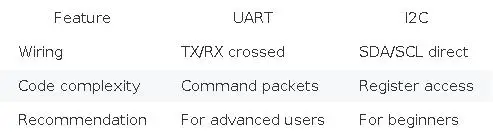
💡 Tip: We recommend starting with I2C — simpler code, easier debugging.
Step 2: Wiring
DimmerLink Connectors
Input (to your project):
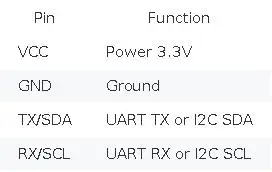
Output (to dimmer module):
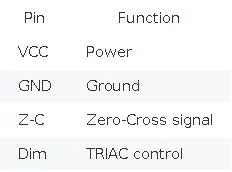
Connection Diagram
[Your Project] ←→ [DimmerLink] ←→ [Dimmer] ←→ [Mains + Lamp]
Step 3: Upload Code
Option A: I2C (Recommended)
Arduino:
==========
#include
#define DIMMER_ADDR 0x50
#define REG_LEVEL 0x10
void setup() {
Wire.begin();
}
void loop() {
// Smooth brightness change
for (int level = 0; level <= 100; level += 10) {
setLevel(level);
delay(500);
}
for (int level = 100; level >= 0; level -= 10) {
setLevel(level);
delay(500);
}
}
void setLevel(uint8_t level) {
Wire.beginTransmission(DIMMER_ADDR);
Wire.write(REG_LEVEL);
Wire.write(level);
Wire.endTransmission();
}
==========
MicroPython (ESP32, Raspberry Pi Pico):
==========
from machine import I2C, Pin
import time
# ESP32: scl=22, sda=21
# Raspberry Pi Pico: scl=5, sda=4
i2c = I2C(0, scl=Pin(22), sda=Pin(21), freq=100000)
DIMMER_ADDR = 0x50
REG_LEVEL = 0x10
def set_level(level):
i2c.writeto_mem(DIMMER_ADDR, REG_LEVEL, bytes([level]))
# Smooth brightness change
while True:
for level in range(0, 101, 10):
set_level(level)
time.sleep(0.5)
==========
Python (Raspberry Pi):
==========
from smbus2 import SMBus
import time
bus = SMBus(1)
DIMMER_ADDR = 0x50
REG_LEVEL = 0x10
def set_level(level):
bus.write_byte_data(DIMMER_ADDR, REG_LEVEL, level)
# Set brightness to 50%
set_level(50)
==========
Option B: UART
Arduino:
==========
// Use Serial1 (or SoftwareSerial for Uno)
#define DIMMER_SERIAL Serial1
void setup() {
DIMMER_SERIAL.begin(115200);
checkConnection();
}
void loop() {
setLevel(50); // 50%
delay(2000);
setLevel(100); // 100%
delay(2000);
}
void setLevel(uint8_t level) {
uint8_t cmd[] = {0x02, 0x53, 0x00, level};
DIMMER_SERIAL.write(cmd, 4);
// Wait for response
delay(10);
if (DIMMER_SERIAL.available()) {
uint8_t response = DIMMER_SERIAL.read();
// 0x00 = OK
}
}
// Connection check — request mains frequency
void checkConnection() {
uint8_t cmd[] = {0x02, 0x52};
Serial1.write(cmd, 2);
delay(50);
if (Serial1.available() >= 2) {
uint8_t status = Serial1.read();
uint8_t freq = Serial1.read();
if (status == 0x00) {
Serial.print("OK! Mains frequency: ");
Serial.print(freq);
Serial.println(" Hz");
}
}
}
==========
Python:
==========
import serial
import time
ser = serial.Serial('/dev/ttyUSB0', 115200, timeout=0.1)
def set_level(level):
cmd = bytes([0x02, 0x53, 0x00, level])
ser.write(cmd)
response = ser.read(1)
return len(response) > 0 and response[0] == 0x00
# Set brightness to 50%
if set_level(50):
print("OK")
else:
print("Error")
==========
Step 4: Verify Operation
Upload the code to your microcontroller
Power up DimmerLink
Observe — the lamp should change brightness
Customer Reviews
No reviews yet
DimmerLink - AC Dimmer controller, UART/I2C interface, FLICKER-FREE, NO LIBRARIES REQUIRED
Quantity:
1
Availability:
Not Available