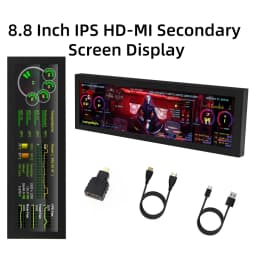
8 Inch IPS USB Secondary Screen 1960*480 Type-C LCD Computer Hardware Monitor CPU RAM GPU IPS HDMI LCD Display
124.83$
59.8$
Quantity:
1
Availability:
Color
Ships From
Card Payments
Crypto Payments
Easy return
Reliable Shipping
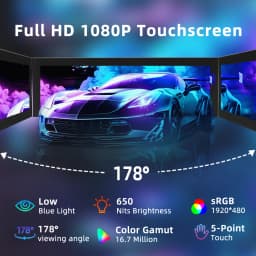
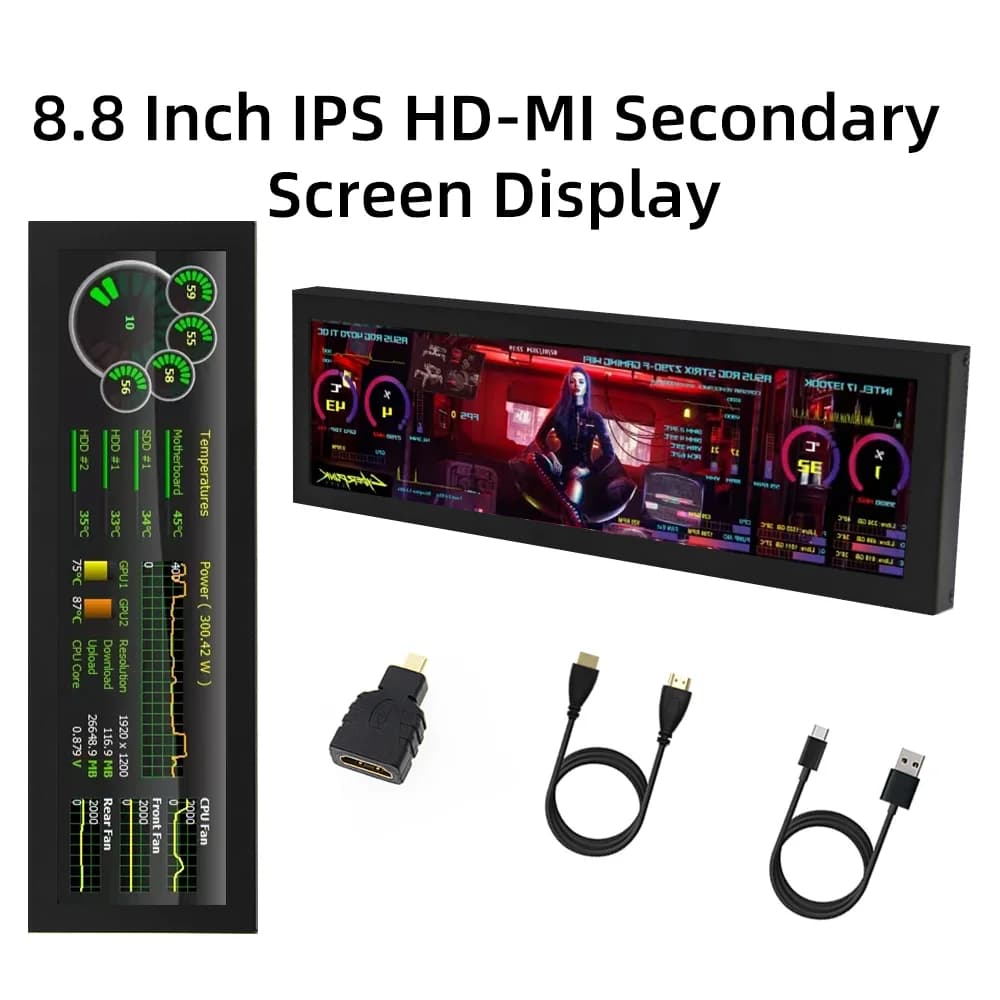
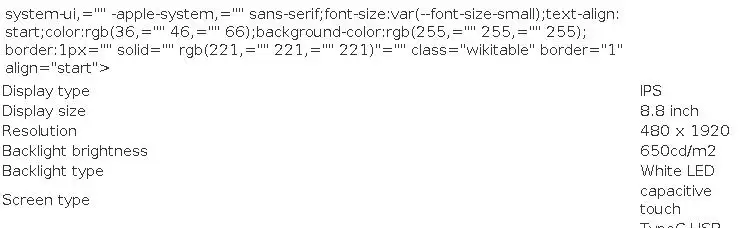
8.8-inch IPS high-definition display screen
Large viewing angle
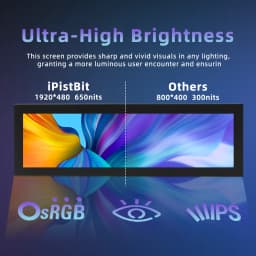
Excellent image quality
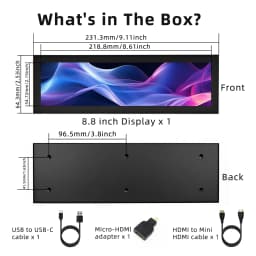
480X1920 resolution
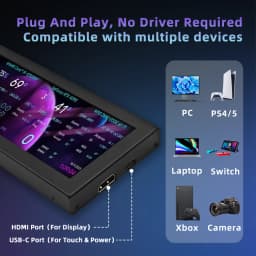
HDMI interface
High-definition input
Can be used as an HDMI display
Supports access to multiple devices
Can be connected to mainstream development boards such as Raspberry Pi, Banana Pi, BB Black
Can be connected to mainstream game consoles such as PS4, Xbox360, Switch
Can be connected to mainstream TV boxes and digital cameras (display only)
Supports multiple system displays
Supports Raspbian, Kali linux, Ubuntu, Kodi, Win10 IOT and other systems, touch-free driver
Supports Win7/8/10/11 and other systems, touch-free driver
Interface Function Description

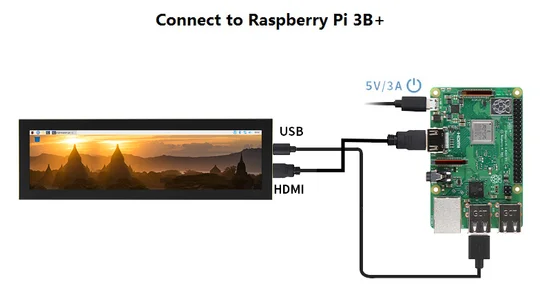
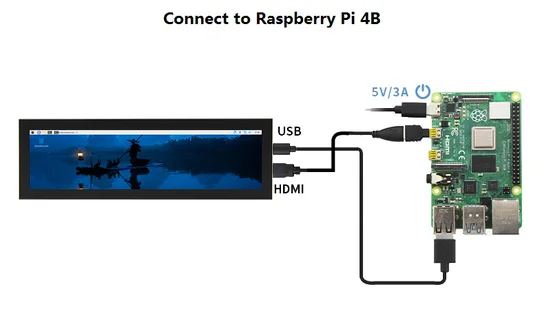
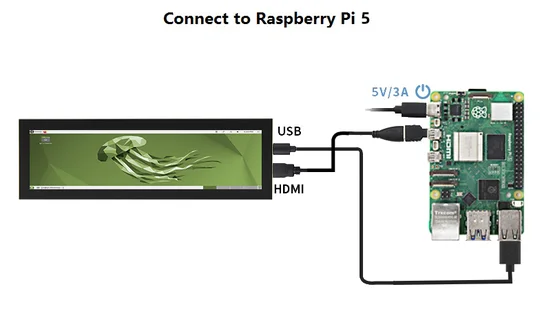
For Raspberry Pi
Step 1, download the latest official image
Download the official image of Raspbian
- Download URL:
https://www.raspberrypi.org/downloads/raspbian/
Username: pi Password: raspberry
Download the official image of Ubuntu Mate
- Download URL:
https://ubuntu-mate.org/download/
Username and password can be set by yourself after booting
Download the official image of Kail -
https://www.offensive-security.com/kali-linux-arm-images/
Username: kali Password: kali
Download the official image of Retropie -
https://retropie.org.uk/download/
Username: pi Password: raspberry
Step 2, Burn the official website image
1) Download and install the tool software (if it has been installed, this step can be ignored)
SD card formatting software SDFormatter download website:
https://www.sdcard.org/downloads/formatter_4/
Image burning software Win32DiskImager download website:
https://sourceforge.net/projects/win32diskimager/
2) Format SD card
Insert the SD card into the card reader -> insert the card reader into the computer -> open the SDFormatter software -> select the SD card -> select Quick format
(Generally, select Quick format, other options are selected according to your needs) -> Click the Format button -> Select "Yes" -> Click OK after formatting is completed.
3) Burn the image
Open Win32DiskImager software -> Select the image file to be burned (xxx.img) -> Select the SD card -> Click the "write" button ->
Select "Yes" -> Wait for the burning to complete (the whole process takes about 10 minutes)
Step 3, modify the "config.txt" configuration file
Open the "config.txt" file in the root directory of the SD card on the computer, add the following content at the end of the file, save and exit.
max_usb_current=1
Note: For the official Raspberry Pi system after 2021-10-30, dtoverlay=vc4-kms-v3d must be changed to dtoverlay=vc4-fkms-v3d, or commented out, otherwise there may be no display.
Step 4, Insert the SD card
After completing the above steps, eject the SD card on the computer and insert it into the SD card slot on the back of the Raspberry Pi
Step 5, Run the system
Connect the display HDMI interface and TOUCH interface to the Raspberry Pi, connect the Raspberry Pi power supply and turn it on to display and touch normally.
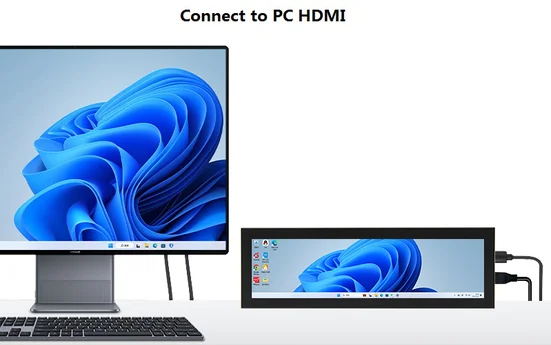
For PC HDMI monitor
Customer Reviews
No reviews yet
8 Inch IPS USB Secondary Screen 1960*480 Type-C LCD Computer Hardware Monitor CPU RAM GPU IPS HDMI LCD Display
124.83$
59.8$
Quantity:
1
Availability:
Color
Ships From